
How to enable polls in your event?
Last updated: August 13, 2025
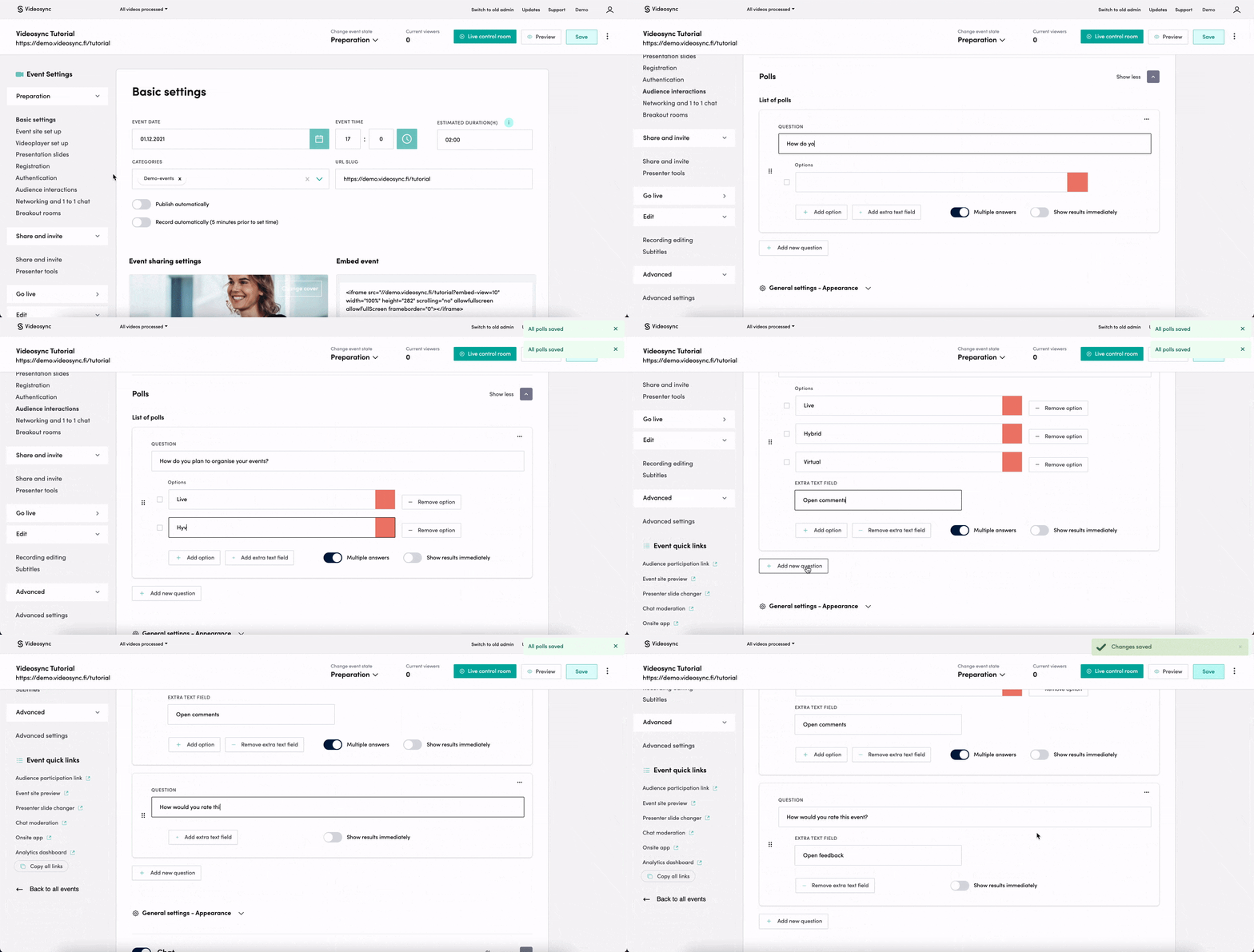
You can create polls to your event site under Audience interactions.
How to create poll questions?
Go to Polls and start by choosing the type of the poll
There are 4 different poll types
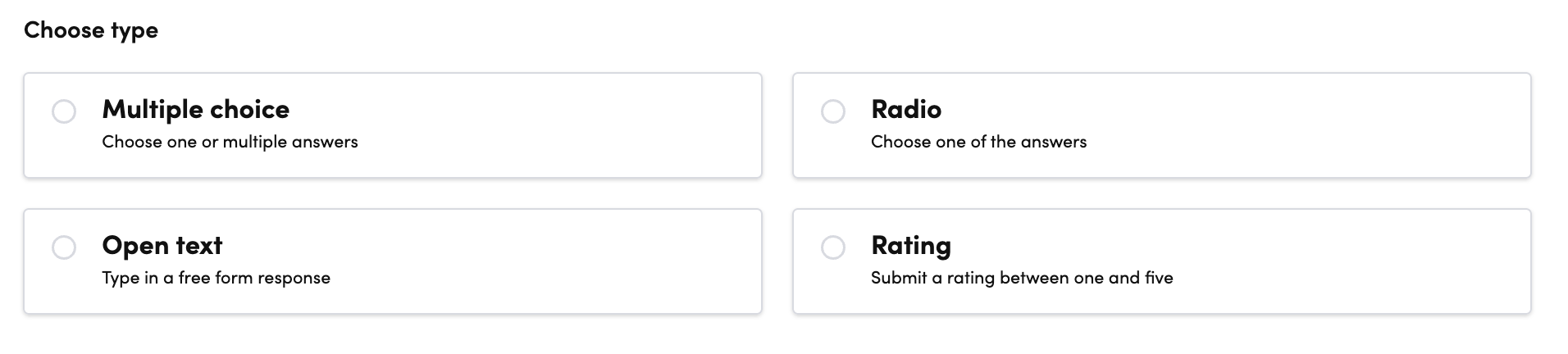
- Multiple choice: You can ask question and let attendees to pick multiple options.
- Radio: You can ask question and let attendees to pick only one option.
- Open text: Ask attendees for open text
- Rating: Let attendee to give a rating between 1-5 In all poll types, you can add open text field by clicking “Add extra field”. You can also allow multiple answers, as well as show the poll results immediately to the attendees.
General settings - appearance:
- Modify the button texts shown in polls
- Enable onsite polls for hybrid event, where you have live and remote attendees. If you’d like to use this feature, please contact suppport@videosync.fi
- Enable dark theme for the poll interface, if that matches better your event’s appearance
Activate polls in your live event
After you have created the poll questions, you can manage the polls in the live setting through our Live control room.
NB! Chat needs to be activated in order to show polls in Live Control Room.
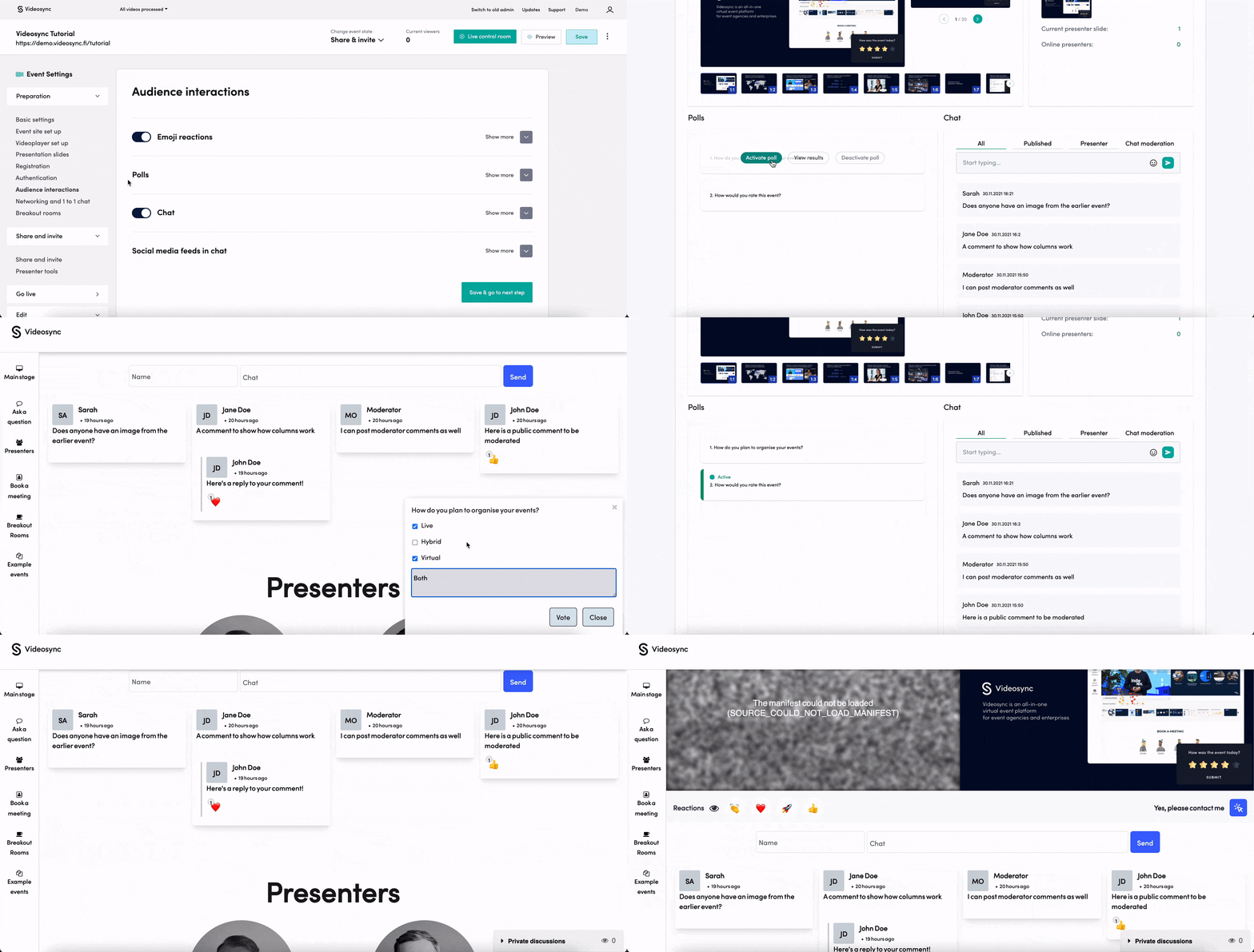
Go to Live control room in the upper right corner of the event. Your event state needs to be Preparation, Share & Invite or Go live.

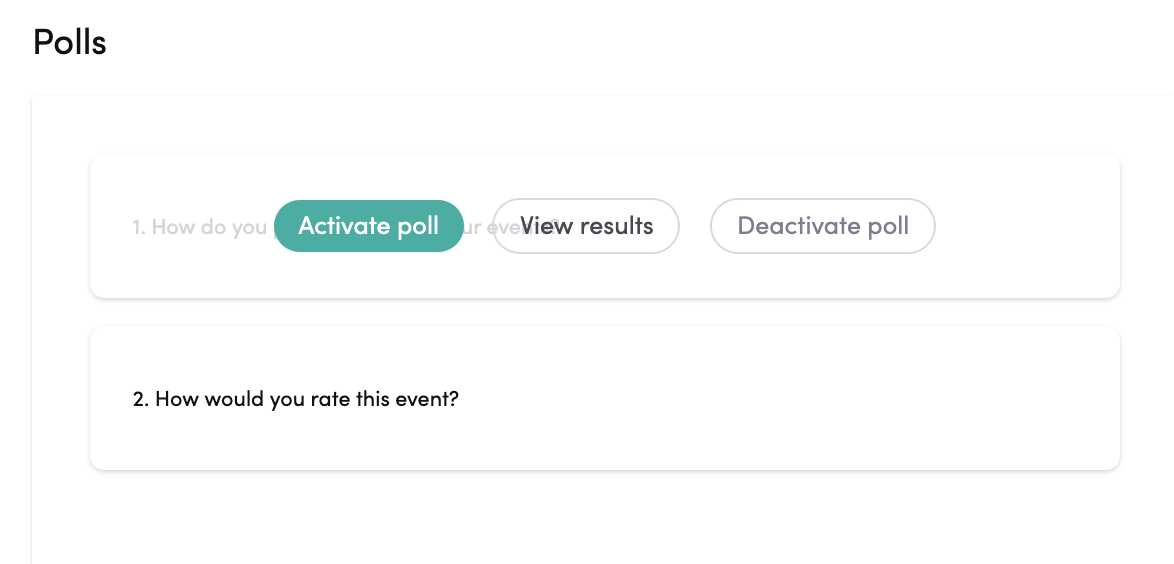
In Live control room, you can:
- Activate poll: Start showing the poll question to the audience and allow voting
- View results: Show the results of the poll question to the audience
- Deactivate poll: End showing the poll question or results to the audience
🎛️ For more instruction related to Live control room, go to How to control your live event with Live control room
Tweak the polls for the recording
Go to Edit and Recording editing. There you can modify how poll questions and results are shown on the event site after the live event.
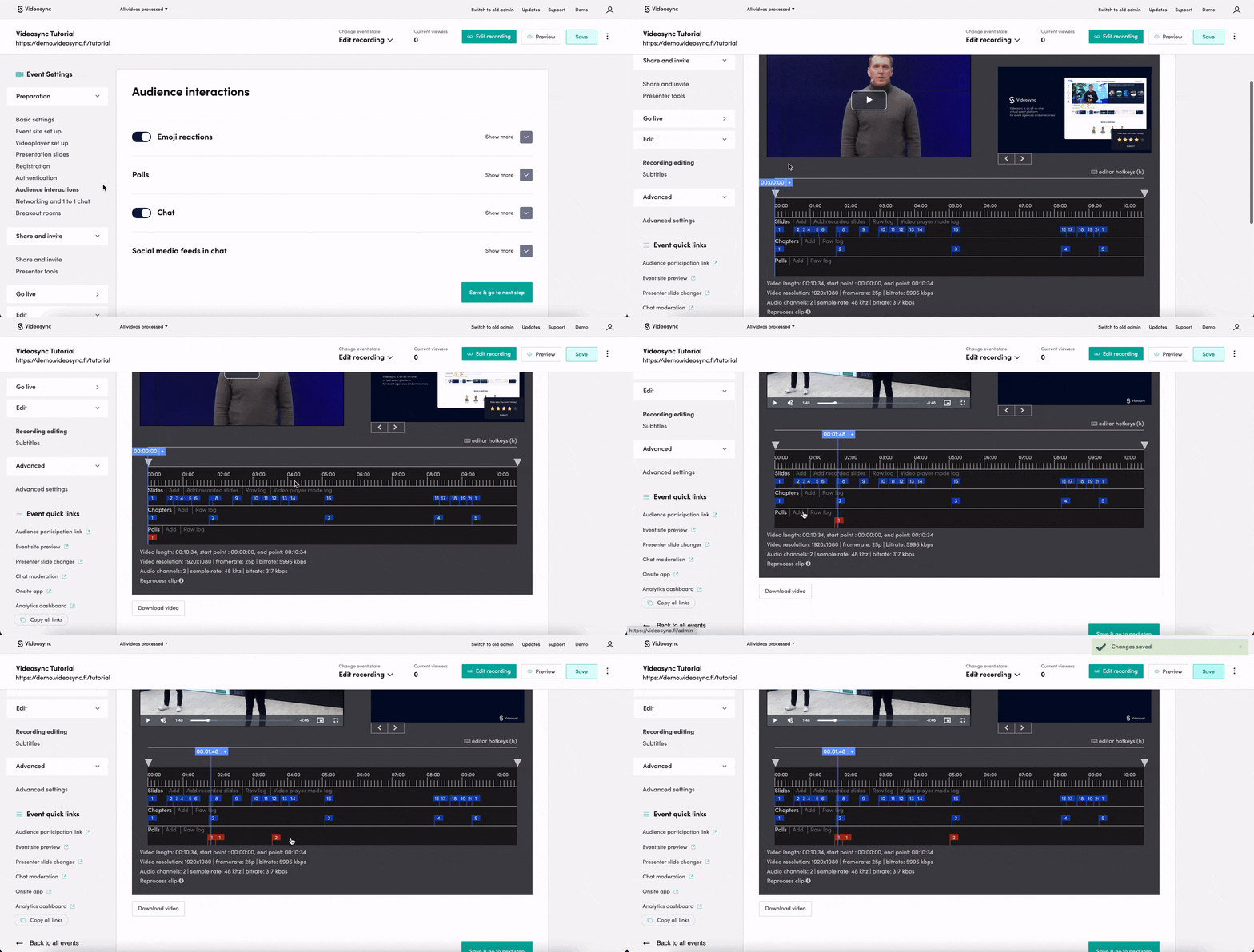
You can find the synced polls based on the live event, but you can still tweak, move and add and remove poll questions and results.
To fine tune the timing based on seconds, you can use the Raw log.
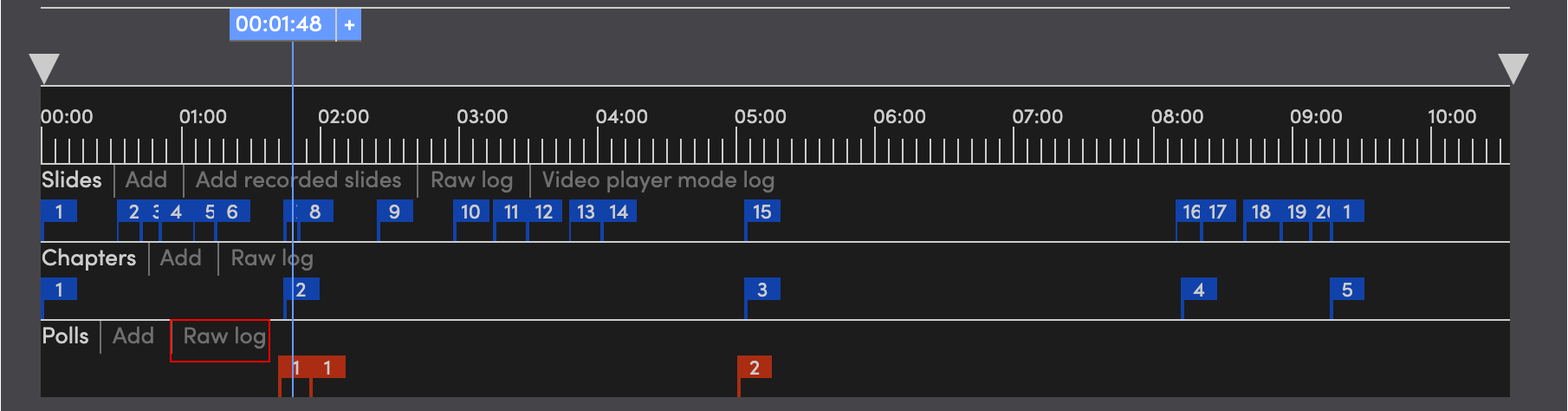
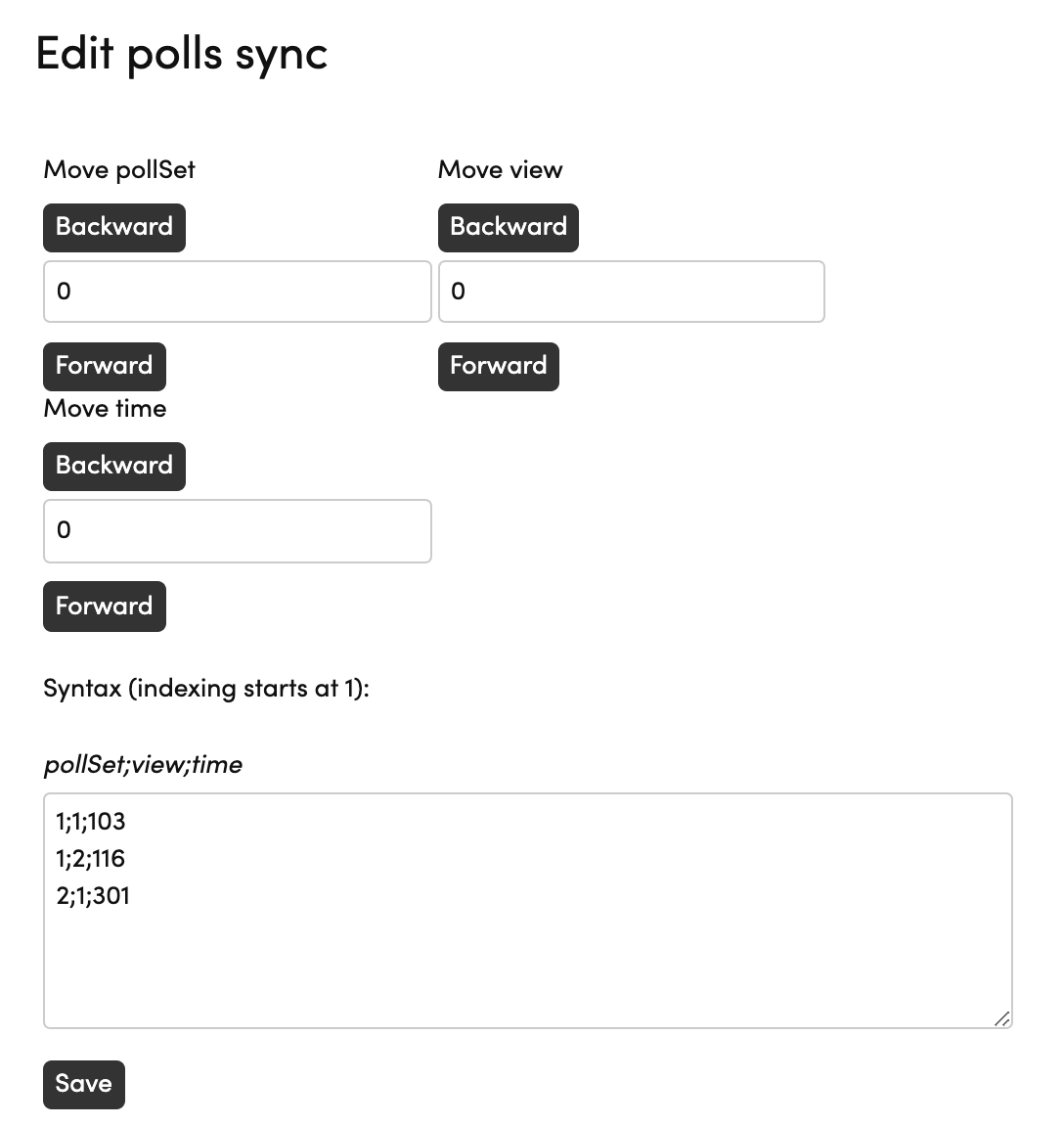
In Raw log you can modify the exact timings of different polls.
- pollSet: the index number of your pollSet
- view: the poll view you want to show, 1=question and 2=results
- time: the exact time in seconds when you want to show the poll
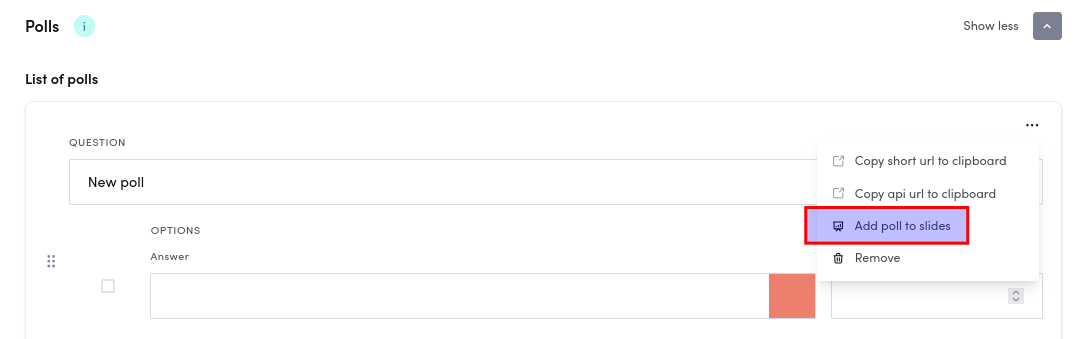
Adding poll to slides
You can add the poll to slides by clicking the three dots and choosing “Add poll to slides”. After that the poll you added to slides will appear as one of the slides in Presenter Slide Changer and Control View.
Can't find what you're looking for?
Our AI assistant is here to help you find the information you need.