
Working with multiple languages
Last updated: August 28, 2025
Videosync event page currently supports three different multi language components
-
Multiple audio tracks for simultaneous translation: Used typically in events where requirements for accessibility are high and interpreters are being used, for example in some Annual General Meetings.
-
Multiple language versions for slides: When this setting is enabled, you can upload alternative pdf slides for your languages. Note that pdfs should have matching slides on the same indices.
-
Multiple language versions for event schedule: When this setting is enabled, you can type in different texts for event schedule chapters.
Streaming multiple audio tracks requires a special live channel and encoder configuration. Request channel configuration from support@videosync.fi to get channels configured to your event. Working with multi language slides and chapters is possible without channel configuration.
Enable multi language feature
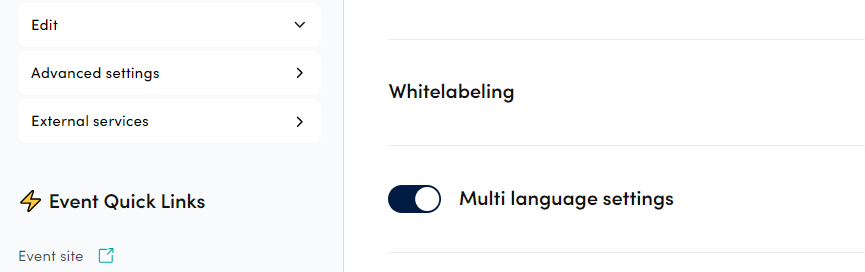
In the page Advanced settings, open Multi language settings to start working with it.
Add languages
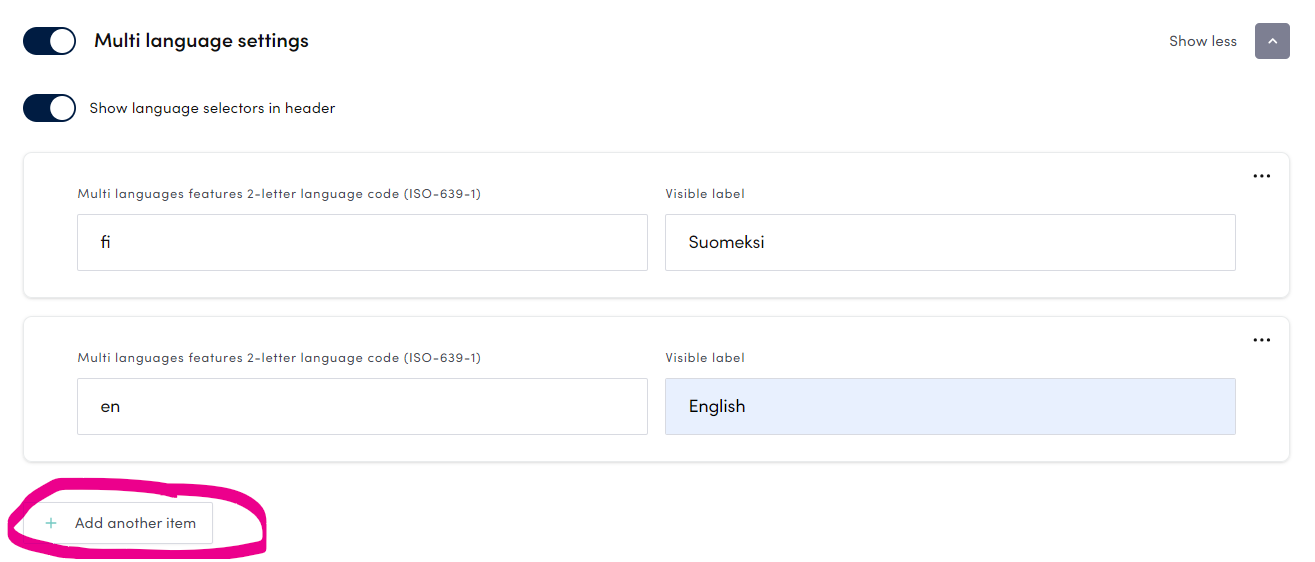
Click Add another item to add languages. Use the 2-letter ISO code that you can find for example from Wikipedia’s List of ISO 639 language codes and Visible label field for how it being displayed for the participants.
Add multilanguage slides
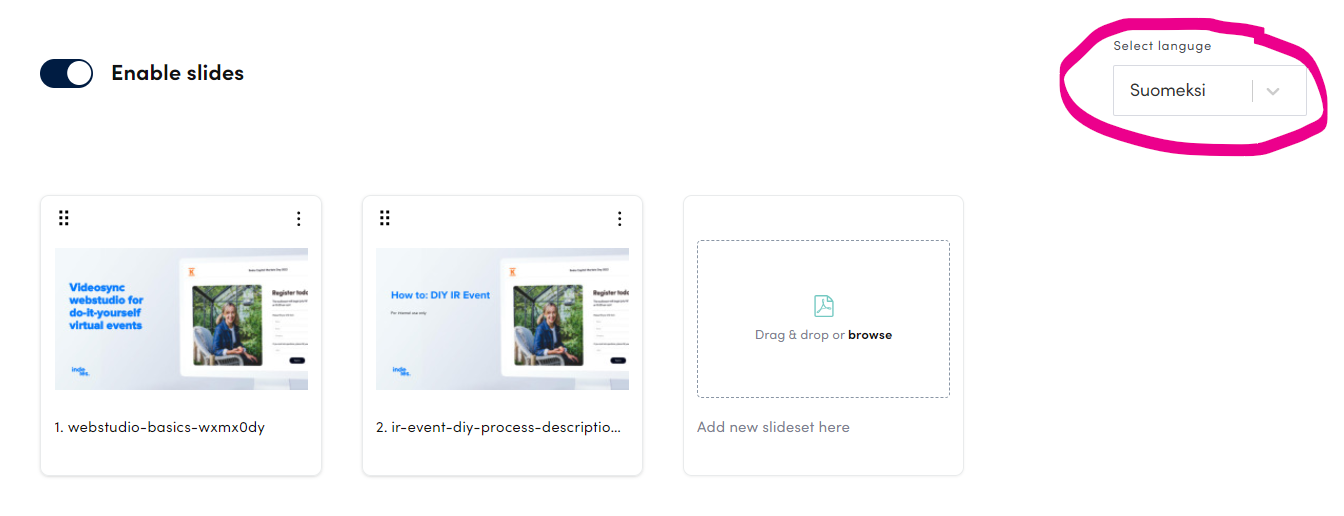
In the Build → Presentation slides section, you will see a language selector on the top-right corner. Select your main language from selector and add your slideset PDFs and arrange slidesets in correct order.
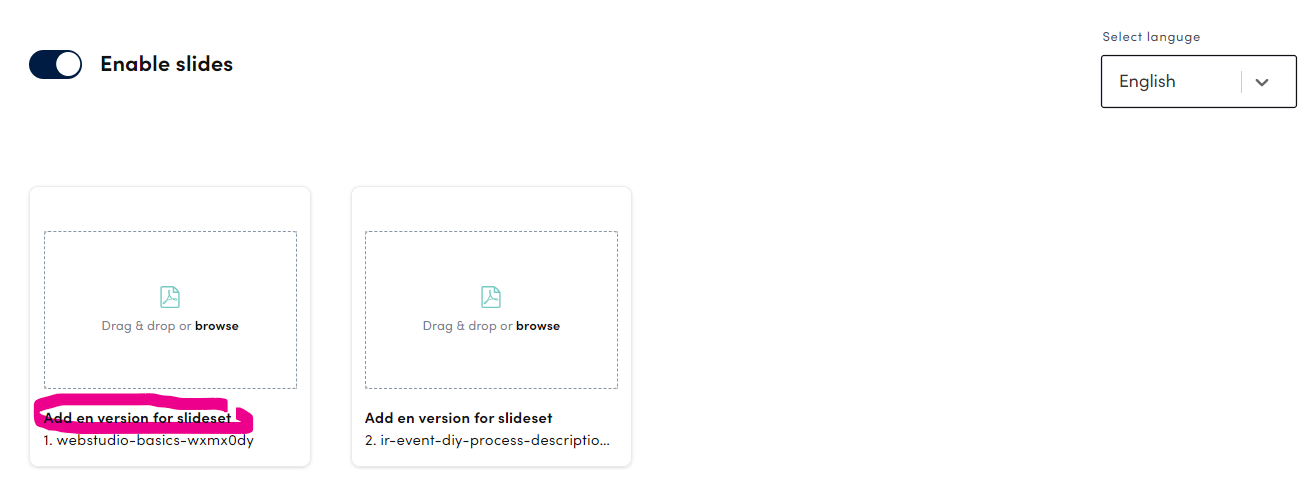
To add language version slides, first select another language from the selector. You will see that the slideset names from your main language are visible. Now, drag and drop PDF files or click to browse and add the respective language slides. Note that the slidesets need to have exactly same amount of slides in different language versions - otherwise the slidesync will be false for that particular language version.
Add Event schedule (chapter) language versions
In the Build → Event site set-up → Event Schedule section, select first your main language from the selector, and add your chapters using Add another item button.
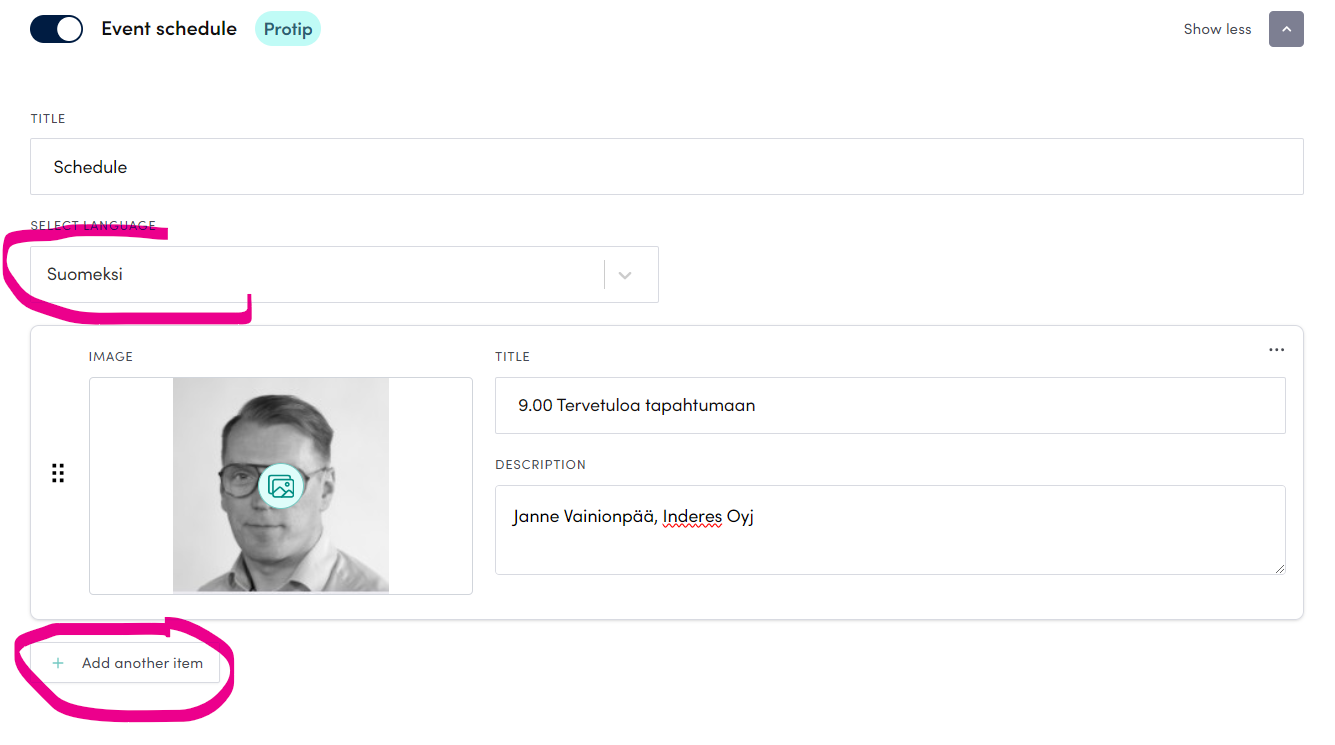
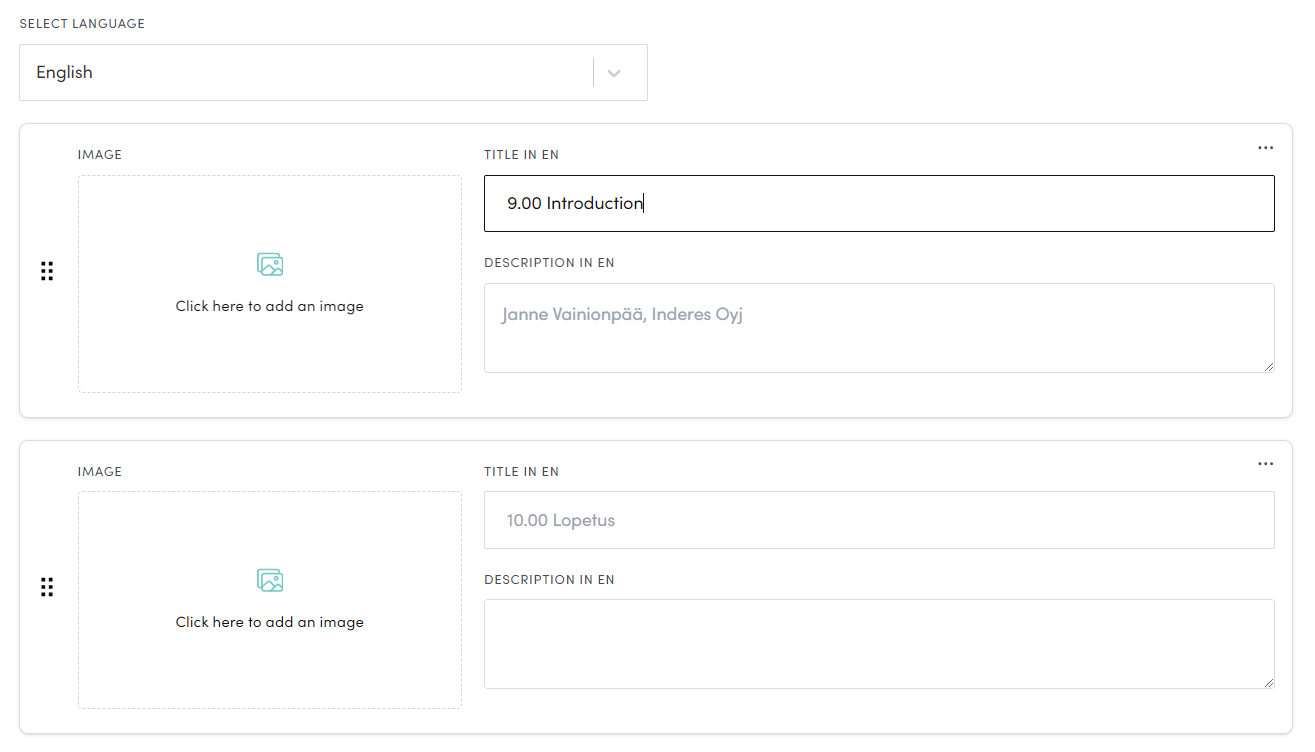
To enter language versions for the chapters, select another language from the selector and fill in the chapters in desired language. Note that the images need to be re-selected currently, they are not auto-populated based on the main language version. Another note, changing the number of chapters is only possible when editing your main language chapters - editing secondary languages only enable modifying the content in the chapters.
Language selectors in the participant interface
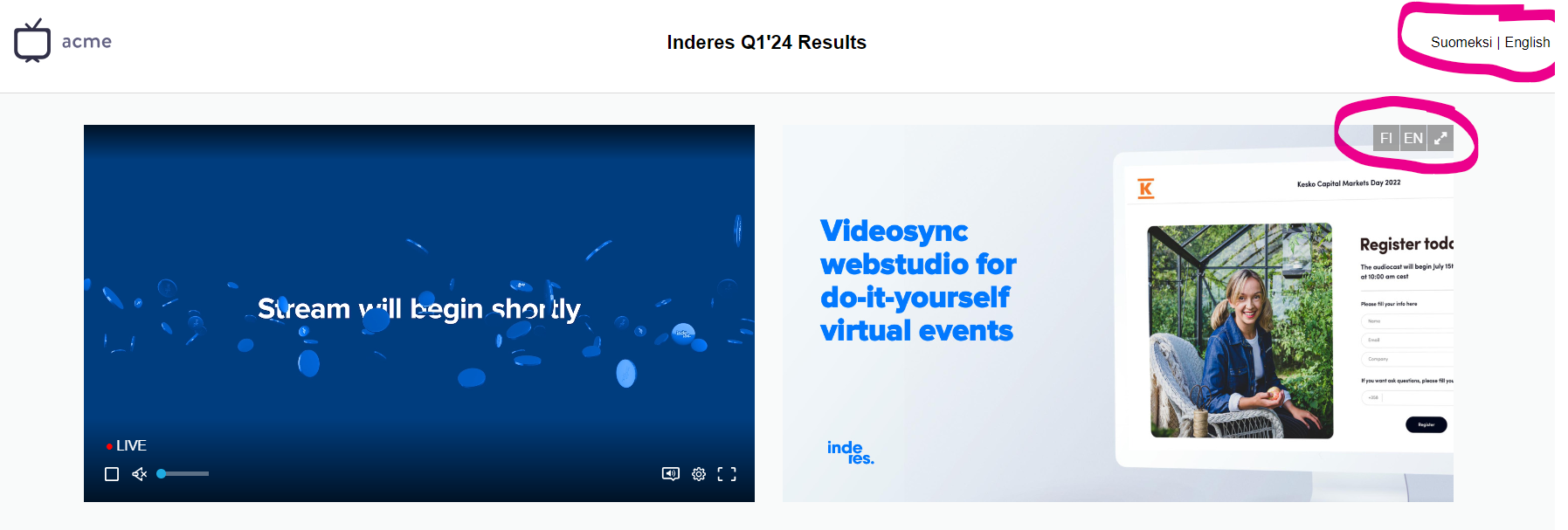
When going live (or publishing a recording) the viewing page interface shows two different language selectors.
- When selecting a language from the main language selector (in the top-right corner in this sample), the language is switched for all content that has language versions defined.
- When selecting language from the slide hover, only the slide language is being changed for the viewer.
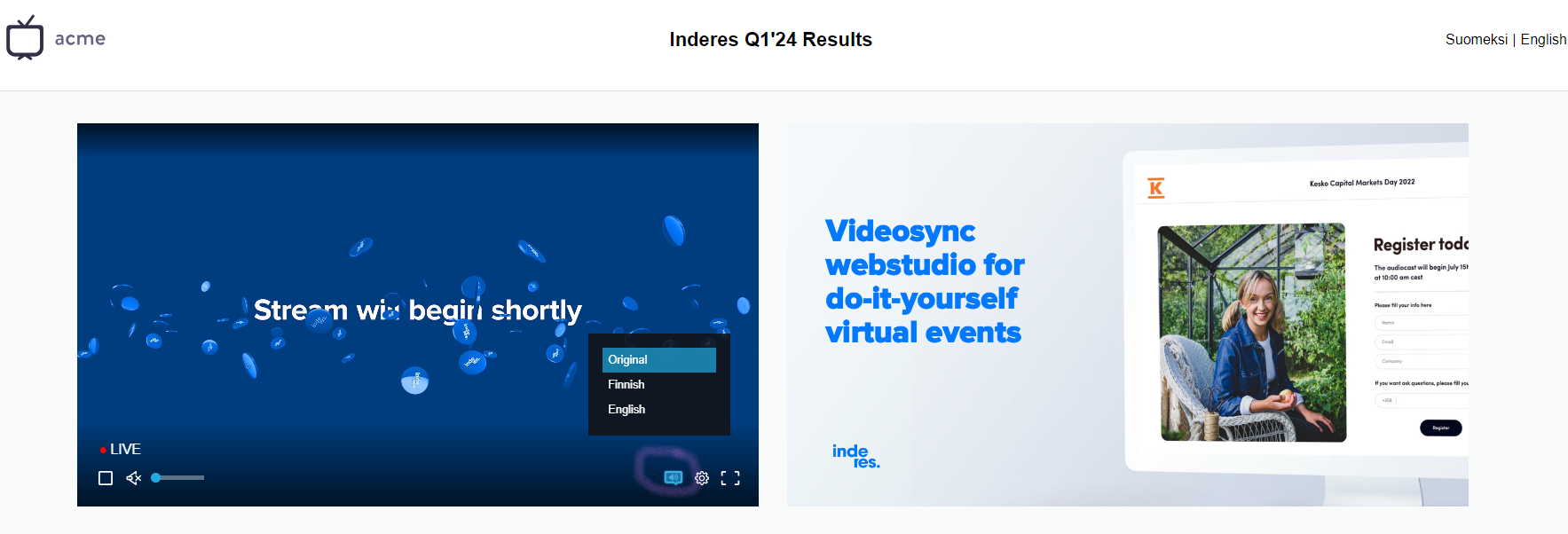
User interface also shows a language selector for the audio separately. In the sample below it is embedded in the video player, where participants can change the audio track to their preference.
Streaming multiple audio tracks
Download Multi audio stream encoding guide to dive into how the multi language streams are produced.
Can't find what you're looking for?
Our AI assistant is here to help you find the information you need.